How to Automate Streaming Channel Switching: The 2026 Cord Cutter's Guide
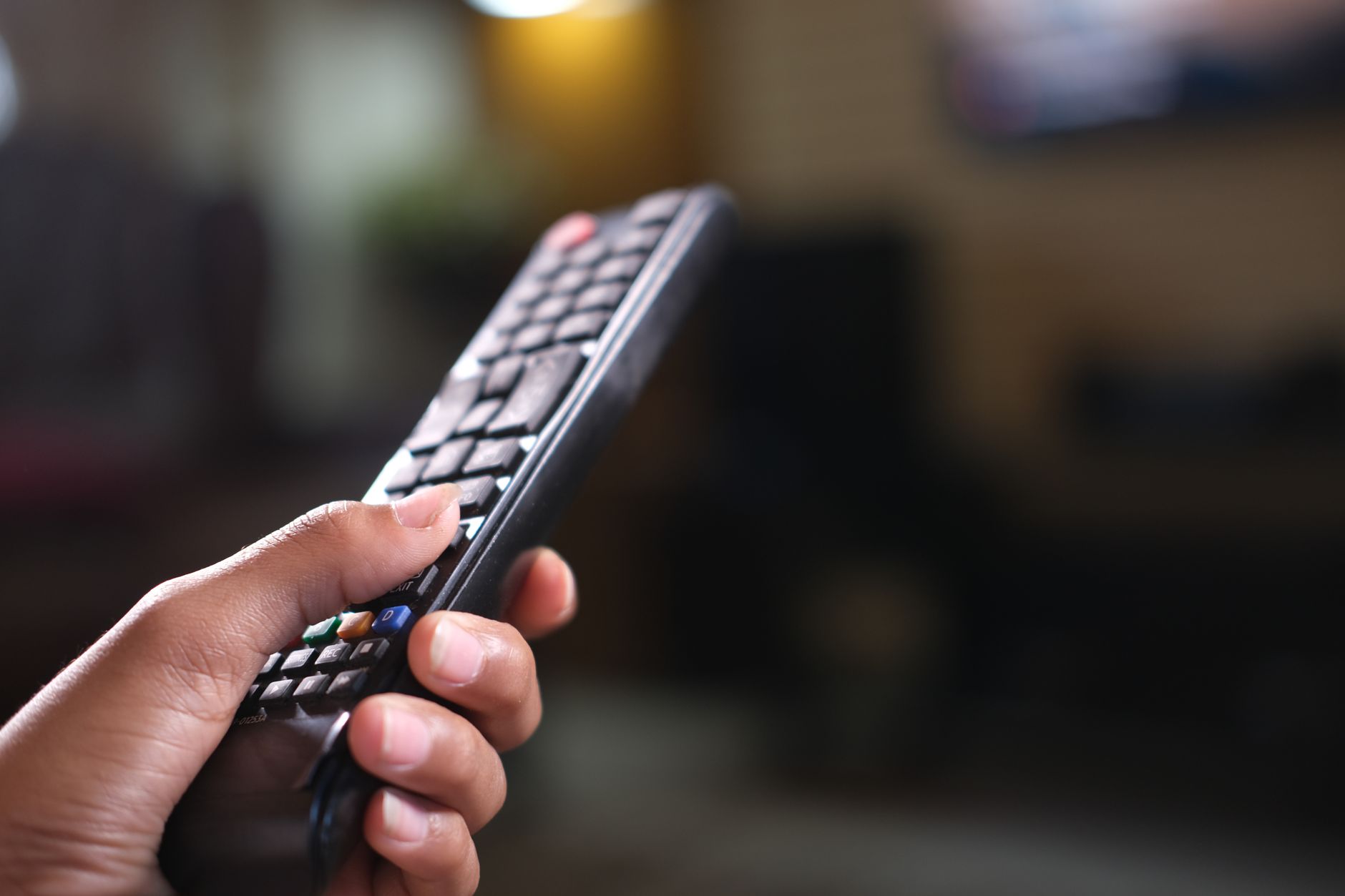
The streaming landscape has hit peak fragmentation in 2026. With the average household now juggling 4.7 streaming subscriptions and live sports scattered across six different platforms, manually switching between Netflix, YouTube TV, and Prime Video has become the modern equivalent of getting up to change the channel—except now you’re navigating labyrinthine menus instead of turning a dial. If you’re tired of the “app shuffle” every time you want to move from the morning news to your evening game, learning how to automate streaming channel switching isn’t just a luxury; it’s essential for maintaining your sanity in today’s fractured streaming ecosystem.
This guide walks you through practical, hardware-agnostic methods to automate your viewing experience using tools available right now, from built-in smart TV routines to advanced HDMI-CEC triggers.
Why Manual Switching Is Killing Your Streaming Experience
Recent industry data shows that viewers spend an average of 12 minutes per day simply navigating between apps and searching for content. That’s 73 hours per year—more than three full days—lost to menu diving. The problem intensified in early 2026 when major sports leagues completed their transition to exclusive streaming deals, forcing fans to jump between services for different games.
The core issue: Modern smart TVs treat each streaming service as an isolated island. Unlike traditional cable boxes where channel 205 was always ESPN, today’s “channels” are buried inside apps that require authentication, loading screens, and often 15-30 seconds of buffer time before content starts.
Automating these transitions solves three specific pain points:
- Eliminating decision fatigue when switching between work-from-home background noise and focused viewing
- Reducing hardware wear on your remote’s directional pad (yes, that’s a real failure point after 18 months of heavy use)
- Creating seamless transitions for live events that span multiple services, like when your NFL game moves from local broadcast to streaming exclusive
Method 1: Native Smart TV Routines and Scenes
Most 2024-2026 smart TVs include automation features buried in their settings menus, though manufacturers use different terminology. Samsung calls them “Scenes,” LG uses “Routines,” and Google TV refers to “Automations.”
Samsung Tizen (2024-2026 models): Navigate to Settings > General > Smart Features > Scene. Create a “Sports Night” scene that launches your specific sports app, sets the picture mode to Sports, adjusts sound to Stadium, and even dims your smart lights if connected to SmartThings. The key is setting the Input Source to trigger the automation—when you switch to HDMI 1 (where your streaming stick lives), the scene activates automatically.
Google TV/Chromecast: The 2026 Google TV update introduced “Watchlist Automation.” Long-press the home button, select “Automations,” and create time-based triggers. For example: “At 7:00 PM weekdays, open YouTube TV and tune to channel 104 (ESPN).” This uses the deep-linking protocol that most major streaming services now support.
Pro tip: These native routines work best when combined with HDMI-CEC. Enable “Device Link” or “Anynet+” in your TV settings so that powering on your PlayStation 5 automatically switches the input and launches your preferred gaming dashboard, while powering on your Apple TV triggers your movie-watching scene with calibrated picture settings.
Method 2: Voice Command Shortcuts That Actually Work
Voice control has evolved beyond simple “Open Netflix” commands. The 2026 generation of voice assistants supports compound commands that handle multi-step switching processes.
Advanced Alexa Routines: Don’t settle for “Alexa, switch to sports.” Create a routine that:
- Changes input to HDMI 2
- Launches FuboTV
- Navigates to the “Sports” tab
- Sets volume to 35%
- Disables motion smoothing (crucial for 2026’s high-frame-rate sports broadcasts)
Set the trigger phrase as “Alexa, game time.” The routine executes in under 8 seconds—faster than manually navigating to the app.
Google Assistant Shortcuts: Use the “Hey Google, [custom phrase]” feature to create deep-link shortcuts. For instance, “Hey Google, watch the news” can trigger a specific YouTube TV channel (like your local ABC affiliate) rather than just opening the app to the home screen. This requires using the Google Home app’s “Try adding your own” experimental feature, which allows you to input specific intent URLs for supported apps.
Siri Shortcuts for Apple TV: If you’re in the Apple ecosystem, the Shortcuts app can now control Apple TV 4K (2025 model and later) via the “Remote” action. Create a shortcut named “Evening Wind Down” that opens the Apple TV app, selects your “Up Next” queue, and enables Do Not Disturb on your iPhone simultaneously.
Method 3: Third-Party Automation Platforms
For true cross-platform automation that bridges your TV, lights, and sound system, you need middleware that speaks multiple device languages.
Home Assistant Integration: The open-source Home Assistant platform now supports Android TV and Apple TV natively in 2026. Create an automation that monitors your calendar: when it detects “NFL Sunday” in your schedule, it automatically:
- Turns on the TV at 12:55 PM
- Switches to the input hosting your streaming device
- Launches the YouTube TV app
- Sets the audio output to your soundbar (bypassing TV speakers)
- Adjusts your smart blinds to reduce glare
This requires the Android TV Debug Bridge (ADB) integration for Google TV devices or the Apple TV integration for tvOS, but once configured, it runs without cloud dependency.
IFTTT Pro Workflows: While IFTTT lost some TV integrations in 2025, it still works with Harmony Hub (discontinued but widely available used) and certain smart plugs. Create an applet: “If my phone connects to home Wi-Fi after 6 PM, turn on the TV and set input to Roku.” Pair this with a Roku “Quick Launch” shortcut for your preferred evening channel, and you’ve automated the entire startup sequence.
Harmony Hub Activities: Despite Logitech discontinuing the Harmony line, the existing hubs remain the gold standard for channel switching automation. Program a “Watch Football” activity that powers on your TV, AV receiver, and streaming stick, then sends the specific IR codes or IP commands to launch your sports app. The 2026 workaround involves using the Harmony mobile app’s “Favorites” feature to create one-touch channel presets that actually work with modern streaming devices.
Troubleshooting Common Automation Failures
Even with perfect setup, streaming automation hits snags. Here’s how to fix the three most common 2026 issues:
Authentication Timeouts: Streaming apps increasingly require re-authentication every 30-90 days. When your automation fires but lands on a login screen, the solution is password manager integration. On Google TV, enable “Autofill with Google” so your credentials populate automatically. On Apple TV, use the “Passwords” app integration to auto-fill without typing.
Input Lag During Switching: If your TV takes 10+ seconds to recognize the automation command, disable “Quick Start+” or “Instant On” features. Counterintuitively, these power-saving modes often cause HDMI handshake delays that break automation timing. Instead, use “Eco Mode” with a 5-second delay built into your automation routine.
App Crashes on Launch: When an automated switch causes the app to freeze, add a buffer step to your routine. Instead of “Open Netflix,” program “Open Netflix, wait 3 seconds, press Select.” This accounts for the app’s splash screen loading time, which has increased in 2026 due to 4K HDR asset loading.
Conclusion
Mastering how to automate streaming channel switching transforms your TV from a source of friction into a seamless entertainment hub. Start with your TV’s native routines—they’re free and surprisingly robust—then graduate to voice shortcuts for your three most common viewing scenarios. Once you’ve eliminated the daily app hunt, consider a Home Assistant setup for true “set it and forget it” automation that anticipates your viewing based on time, calendar, or even who’s home.
The goal isn’t just convenience; it’s reclaiming those 73 hours per year you currently spend navigating menus. Pick one method from this guide tonight—perhaps a simple “Movie Night” scene—and build from there. Your future self, settling into the couch as the TV automatically tunes to the game, will thank you.