
Smart TV Upscaling Settings Guide: Make 1080p Look Like 4K in 2026
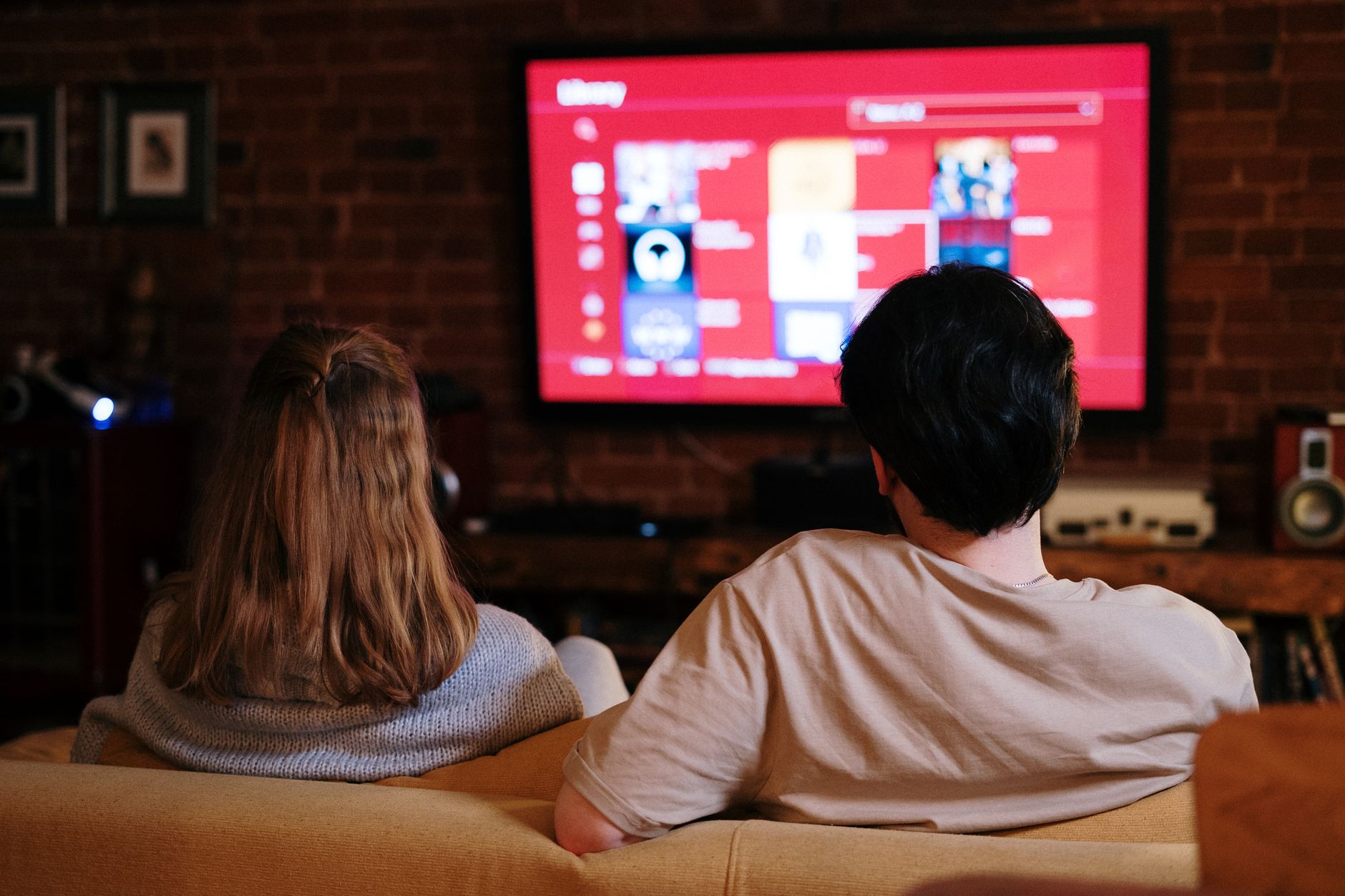
Fall 2026 streaming season is here, and there’s an uncomfortable truth hiding behind all those shiny new 4K and 8K panels: most of what you actually watch still isn’t native 4K. Live sports broadcasts in 1080p, older sitcoms in 720p, cable leftovers, even some “4K” streaming tiers that are heavily compressed — your TV is quietly upscaling the majority of your viewing hours. That’s exactly why this smart TV upscaling settings guide exists. The difference between a properly tuned upscaler and a default one is the difference between “wow, is this native 4K?” and “why does everything look like a smeared watercolor?”
The good news: 2026 TVs ship with genuinely impressive AI upscaling engines — Samsung’s NQ8 AI Gen3, LG’s α11 processor, Sony’s XR Cognitive chip, and TCL’s AiPQ Pro all do remarkable work. The bad news: out of the box, most of them are configured for a bright showroom floor, not your living room. Let’s fix that.
Why Upscaling Matters More Than Ever in 2026
Here’s a stat that surprises most people: even among households with 4K TVs, industry estimates suggest over 60% of streamed content is delivered at 1080p or below. Live TV streaming services like YouTube TV and Hulu + Live TV still cap most channels at 720p or 1080p. Broadcast antenna TV is 1080i at best. Your massive back-catalog watchlist on Netflix? Much of it was mastered in 2K.
Your TV’s upscaler is the translator that stretches those lower-resolution signals across 8.3 million pixels. A good one adds convincing detail. A bad one adds halos, shimmering edges, and waxy skin. Since you can’t change the source resolution, the upscaler settings are your single biggest lever for everyday picture quality — bigger than HDR tweaks, bigger than motion settings.
Start Here: Pick the Right Picture Mode
Before touching any upscaling-specific controls, you need the right foundation. Picture mode changes how aggressively the TV processes everything.
- Filmmaker Mode or Cinema/Movie mode: Uses the most neutral, least destructive processing. This is where AI upscaling works most naturally on most 2026 sets.
- Standard mode: Adds edge enhancement that fights the upscaler. Avoid for movies and shows.
- Vivid/Dynamic: Cranks sharpness to cartoonish levels. Great for selling TVs at Costco, terrible for watching them.
- Game mode: Often reduces upscaling quality to cut lag — fine for consoles, wrong for streaming.
Switch to Filmmaker or Cinema mode for your streaming inputs, then build from there. If the image looks too dim in a bright room, raise the backlight or OLED brightness — don’t jump ship to Standard mode.
The Core Smart TV Upscaling Settings Guide: The Four Controls That Matter
Every manufacturer names these differently, but the underlying controls are the same. Here’s what to look for and where to set it:
1. Sharpness — Lower Than You Think
This is the most misunderstood slider on any TV. Sharpness doesn’t recover real detail; it adds artificial edge contrast. On a 4K TV upscaling 1080p content:
- Start at 0–10 (on a 0–100 scale). Yes, really.
- Samsung owners: keep it at 10 or below. LG: the default 10 is fine, 0 is often better.
- Test with a faces-and-text scene — a news broadcast works great. If you see white outlines around text or a “crunchy” look on skin pores, you’re too high.
2. AI/Super Resolution Upscaling — Medium, Not Max
Samsung calls it “AI Upscaling” (automatic on Neo QLED), LG has “AI Super Upscaling,” Sony uses “Reality Creation,” and TCL/Hisense offer “Super Resolution” sliders.
- Set it to Medium or around 40–60 on sliding scales.
- Maximum settings invent detail that isn’t there — you’ll notice it as flickering textures on clothing, brick walls, and grass.
- Sony owners: Reality Creation at 40–50 with the “Mastered in 4K” logic off for streaming content.
3. Noise Reduction — Your Secret Weapon for Streaming
Compressed streaming video (especially dark scenes on Netflix’s ad tier or lower-bitrate services) arrives full of macroblocking and mosquito noise. Your upscaler amplifies that garbage unless you clean it first.
- MPEG Noise Reduction / Smooth Gradation: Low or Medium for streaming. High crushes fine detail into mush.
- Random/Digital Noise Reduction: Low for streaming, Medium for older DVD-era content or antenna TV.
- Rule of thumb: if dark scenes look like crawling blocks of mud, raise noise reduction one notch. If faces look like wax figures, lower it.
4. Edge Enhancement / Detail Enhancement — Mostly Off
Separate from sharpness, some TVs (Sony’s “Detail Enhancer,” Hisense’s “Edge Enhancement”) have a dedicated control. Keep it at Low or Off — the AI upscaler already handles edge reconstruction, and stacking both creates double-contour artifacts.
Source-Specific Tweaks That Make a Real Difference
Not all sub-4K content is equal. Dial in per-source for best results:
- Live sports (1080i/720p): Upscaling Medium, noise reduction Low, and pair with your sports picture settings — interlaced broadcasts benefit most from strong deinterlacing, which modern AI processors handle automatically.
- Netflix/Disney+/Max 1080p content: Noise reduction Low, upscaling Medium. These streams are compressed but clean.
- Antenna TV (ATSC 1.0): Noise reduction Medium — broadcast compression is brutal, especially on subchannels.
- Old DVDs or 480p rips via Plex: This is where AI upscaling earns its keep. Upscaling High, noise reduction Medium, and accept that it’ll look “good for DVD,” not 4K.
- YouTube: Wildly variable. Leave upscaling at Medium and let it ride — per-video tweaking isn’t worth it.
Pro tip: Most 2026 TVs save picture settings per input and per app. Configure your streaming stick input, built-in apps, and antenna tuner separately — it’s a one-time 20-minute investment.
Common Upscaling Mistakes to Avoid
Even enthusiasts fall into these traps:
- Judging upscaling with native 4K demo content. Test with actual 1080p material — that’s what the upscaler is for.
- Cranking sharpness to compensate for soft streaming. The fix is noise reduction plus AI upscaling, not edge halos.
- Using the TV’s upscaler AND an external device’s. If your Apple TV 4K or Nvidia Shield is set to output 4K, it’s doing the upscaling — and the Shield’s AI-enhanced upscaling often beats mid-range TVs. Pick one brain: either let the source device output native resolution and let the TV upscale, or let the device upscale to 4K. Doubling up causes artifacts.
- Ignoring firmware updates. Samsung, LG, and Sony have all pushed meaningful upscaling improvements via firmware in the past year. Check for updates before blaming your settings.
- Sitting too close. At 65 inches, sitting closer than about 5.5 feet reveals upscaling artifacts no setting can hide. Distance is free picture quality.
Conclusion: Your 20-Minute Upgrade
Upscaling is the invisible technology doing the heavy lifting on most of what you watch, and this smart TV upscaling settings guide gives you the exact levers to pull: start in Filmmaker or Cinema mode, drop sharpness to near zero, set AI upscaling to Medium, use noise reduction surgically, and configure each input separately. Spend 20 minutes tonight with a familiar 1080p show — a sitcom with lots of faces and text is perfect — and A/B your changes against the defaults. You’ll see cleaner edges, natural skin texture, and none of that over-processed shimmer. In a world where native 4K content still hasn’t caught up to our 4K screens, a well-tuned upscaler isn’t a nice-to-have — it’s the whole ballgame.