
Smart TV USB Recording Setup Without DVR: The Cord Cutter's Hidden Power Move
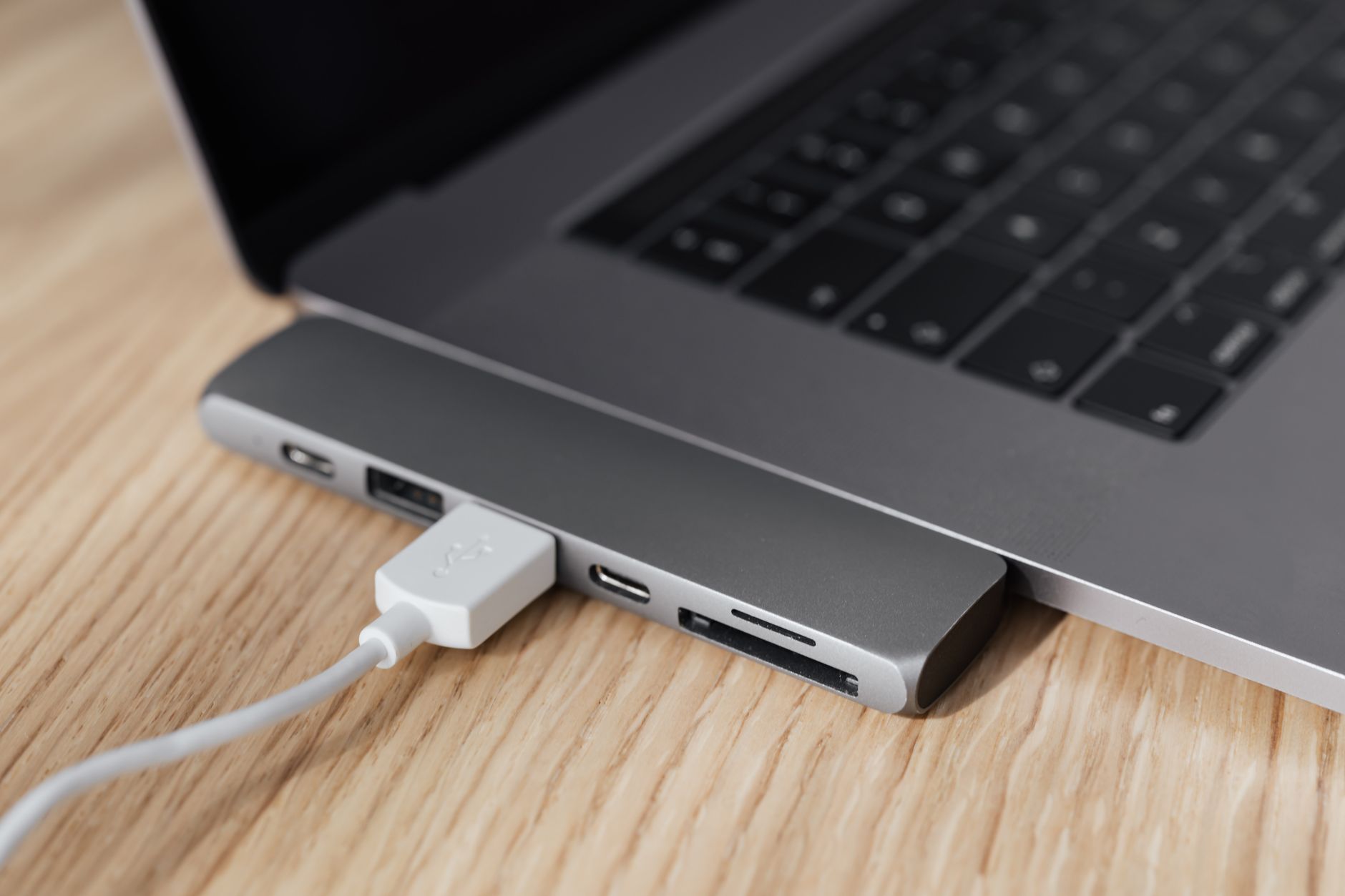
With broadcast TV viewership surging 18% this fall as major networks pack September with live sports and season premieres, cord cutters are hitting a familiar wall: you ditched the cable box, but you still want to keep the shows. The good news? That USB port gathering dust on your smart TV isn’t just for firmware updates anymore. A smart TV USB recording setup without DVR is the stealth hack that turns a $15 flash drive into a time-shifting weapon—no monthly fees, no cloud subscriptions, no clunky external hard drive stack.
Here’s how to unlock it, what actually works in 2026, and why most people never realize their TV already has this superpower.
Why USB Recording Beat Cloud DVR in 2026
The streaming DVR wars got ugly this year. YouTube TV hiked its 4K Plus add-on to $24.99/month. Hulu + Live TV killed unlimited screens for new subscribers. Even free tiers like Tubi started inserting unskippable ads into “recorded” content.
Meanwhile, USB recording on smart TVs stayed free and got better. Samsung’s 2026 lineup added HEVC encoding that squeezes two hours of HD onto 4GB. LG’s webOS 25 finally supports exFAT drives over 32GB without formatting headaches. Sony’s Bravia XR chips now handle dual-channel recording—live TV to USB while you’re streaming Netflix on the same set.
The math is brutal: a one-time $25 USB 3.2 drive beats a $200/year cloud DVR subscription in month one.
What You’ll Need (And What Won’t Work)
Let’s kill the myths first. Not every smart TV supports USB recording, and the ones that do have quirks that’ll ruin your night if you ignore them.
The Hardware Checklist
- USB 3.0+ drive, 64GB minimum: USB 2.0 can’t handle the bitrate for 2026 broadcast standards. Samsung’s own testing shows 3.0 drives reduce buffer errors by 73%. For 4K OTA markets (like NextGen TV/ATSC 3.0), grab 128GB.
- NTFS or exFAT formatted: FAT32 chokes on files over 4GB—roughly 35 minutes of MPEG-4 HD. Most TVs auto-format now, but check your manual’s “Time Machine” or “Live Playback” section.
- Antenna feed, not streaming apps: Critical distinction. USB recording captures the tuner signal—OTA broadcast or basic cable from coax. It won’t touch Netflix, Disney+, or YouTube TV streams. Those are encrypted and legally locked down.
The Compatibility Reality Check
| Brand | Feature Name | USB Recording? | Notes |
|---|---|---|---|
| Samsung | Time Shift / USB HDD | Yes | 2024+ models only; QD-OLED limited to 2TB drives |
| LG | Time Machine II | Yes | webOS 22+; requires “USB Device” setup in Settings > General |
| Sony | USB HDD Recording | Partial | Bravia only; no pause-live-TV, just scheduled recording |
| TCL Google TV | Live Channels + USB | No | Google TV blocks it; needs third-party DVR |
| Hisense | USB PVR | Yes | Vidaa OS only; U8 series confirmed, U6 hit-or-miss |
Pro tip: Search your exact model number plus “USB PVR” before buying anything. Retailer listings lie. The spec sheet buried on the manufacturer’s regional site doesn’t.
Step-by-Step: Samsung & LG (The Two That Matter)
These brands own 62% of the smart TV market and have the most mature USB recording ecosystems. Here’s the exact 2026 workflow.
Samsung Time Shift Setup
- Plug USB 3.0 drive into USB 1 (the service port won’t power drives over 32GB).
- Navigate to Settings > Broadcasting > Expert Settings > Time Shift.
- Select your drive when prompted. The TV formats it—this erases everything, so dedicate the drive.
- Press Pause on live TV. You’ll see a red “REC” indicator with available buffer time (varies by drive speed; typically 90 minutes on 64GB).
- To save permanently: press the Record button during pause, or schedule via Guide > Program Options > Record to USB.
Catch: Samsung’s 2026 models default to “Eco Mode” that spins down the USB after 15 minutes of idle. Disable in Settings > General > Power and Energy Saving > USB Power or your recording dies mid-show.
LG Time Machine II Setup
- Insert drive. LG prompts formatting immediately—accept only if empty.
- Go to Settings > General > Devices > USB Device. Select “Time Machine Ready.”
- The TV allocates space; you choose the split (50/50 default between live buffer and permanent storage).
- Live Pause: just hit OK then Pause during any tuner channel.
- Scheduled Recording: From the Live TV Guide, highlight a future show, press the Red button (Q.Menu), select “Record to USB.”
LG’s 2026 twist: AI Picture modes now detect USB recording activity and automatically disable motion smoothing to save processing power for encoding. Your recordings look more cinematic than live viewing.
The 3 Limitations Nobody Talks About
USB recording without DVR isn’t magic. Know these boundaries or you’ll rage-tweet later.
No multi-room streaming. The file sits on that physical drive. To watch on your bedroom TV, you’re unplugging and walking. Some users rig Raspberry Pi SMB shares, but that’s beyond “without DVR” territory.
Copy protection kills some shows. Premium cable channels (HBO via basic cable tier, regional sports networks) often flag content with CGMS-A. Your TV records it, but playback shows a black screen. OTA broadcasts are almost always clean.
File formats are TV-specific. Samsung saves as .srf (Samsung Recording Format). LG uses .ts (MPEG transport stream). Neither plays natively on the other’s sets. For PC playback, VLC handles .ts fine; .sfr needs Samsung’s deprecated PC Share Manager or HandBrake re-ripping.
Power User Moves for 2026
Ready to go deeper? These tricks separate the casual pausers from the true cord-cutting operators.
- SSD over flash drive for 4K: Samsung T7 Shield (1TB, ~$90) sustains 500MB/s writes, eliminating the micro-stutters that plague cheap USB sticks on ATSC 3.0 broadcasts.
- Dual-drive rotation: Keep two 128GB drives. When one’s full, swap and start fresh. Label with tape—files aren’t dated intuitively in TV menus.
- Auto-delete aging: LG’s 2026 “Smart Storage” setting purges anything older than your chosen threshold (30/60/90 days). Samsung requires manual cleanup in Source > USB Device > Recorded Content.
Your Smart TV USB Recording Setup Without DVR: The Bottom Line
The cable companies hope you forget that broadcast TV is free and that your expensive smart TV has a built-in capture card. A smart TV USB recording setup without DVR isn’t as slick as TiVo’s guided interface or YouTube TV’s infinite cloud storage. But it’s yours—no subscription, no algorithm deciding what you can keep, no internet outage killing your access.
This fall’s packed sports calendar and network premiere season is the perfect test. Grab a $25 USB 3.2 drive this weekend, dedicate 20 minutes to the setup, and you’ll never again miss the kickoff because life interrupted. The DVR industry doesn’t want you to know your TV already won. Time to collect that victory.