Smart TV VPN Setup Guide: 4 Methods That Actually Work in 2026
Streaming libraries are splitting faster than ever in 2026. With the fall premieres rolling out and platforms like Netflix, Disney+, and the newly merged Paramount-Max hub locking more content behind regional walls, your smart TV is probably showing you a fraction of what you’re paying for. That’s exactly why this smart TV VPN setup guide exists — because installing a VPN on your television isn’t the one-click affair it is on your phone, and most tutorials gloss over the messy parts.
I’ve set up VPNs on over a dozen smart TVs in the past year — Samsung Tizen sets, LG webOS panels, Fire TV Sticks, and Google TV boxes — and the right method depends entirely on what hardware you own. Let’s cut through the noise.
Why Your Smart TV Needs a VPN in 2026
It’s not just about watching British Netflix anymore. Here’s what’s actually at stake:
- Geo-blocked content: Streaming services license shows by region. A VPN makes your TV appear to be in another country, unlocking libraries that can differ by 40% or more between regions.
- ISP throttling: Internet providers have gotten aggressive about deprioritizing 4K streaming traffic during peak hours. A VPN encrypts your traffic, making it much harder for them to single out your Disney+ binge.
- Privacy: Smart TVs are notorious data collectors. Samsung and LG sets phone home with viewing habits. A VPN won’t stop the TV’s own tracking, but it does shield your traffic from your ISP’s data-selling programs.
- Live sports blackouts: Regional sports blackouts remain one of the most frustrating parts of cord cutting. Routing through a different market can restore access.
Method 1: Native VPN App (Fire TV, Android TV, Google TV)
This is the easiest path — if your TV platform supports it. Fire TV and Android TV/Google TV have full app stores with native VPN apps from ExpressVPN, NordVPN, Surfshark, and Proton VPN.
Steps:
- Open your TV’s app store (Amazon Appstore or Google Play).
- Search for your VPN provider and install the app.
- Log in with your credentials. Pro tip: most VPN apps now support QR code login — scan with your phone instead of typing a 20-character password with a TV remote.
- Choose a server location and connect.
That’s it. Four steps, maybe five minutes. The catch? Samsung Tizen and LG webOS don’t allow VPN apps in their stores. If you own one of those sets — and together they represent roughly 45% of the smart TV market — you’ll need one of the workarounds below.
Method 2: Router-Level VPN (The Set-It-and-Forget-It Option)
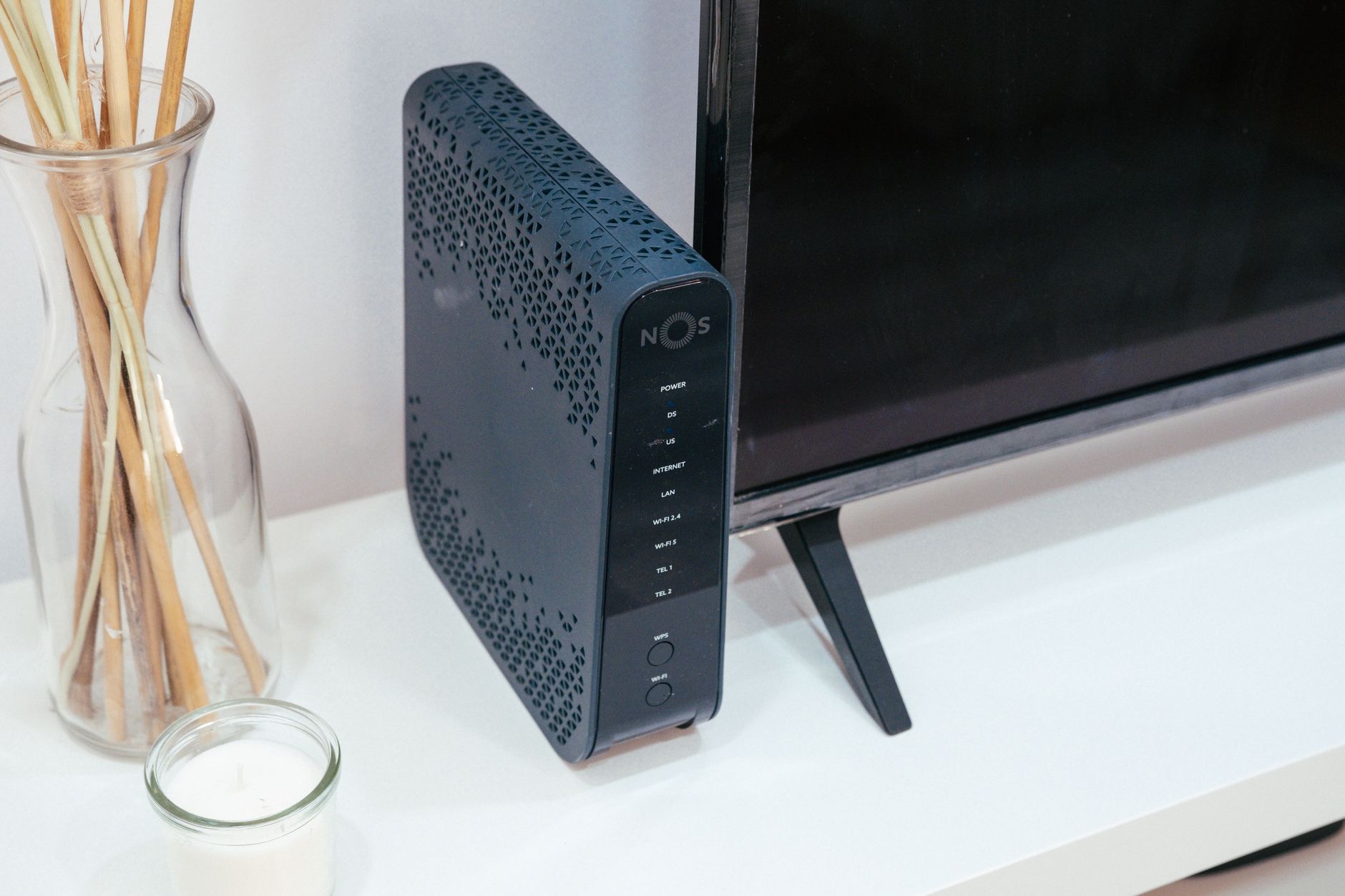
Installing a VPN directly on your router protects every device on your network, including TVs that can’t run VPN apps natively. This is my preferred method for Samsung and LG owners.
What you need:
- A VPN-compatible router. ASUS models with Merlin firmware, or any router running DD-WRT, OpenWrt, or Tomato firmware work well. Many 2026 Wi-Fi 7 routers from ASUS and Netgear now ship with built-in VPN clients.
- A VPN subscription that supports router configurations (ExpressVPN, NordVPN, and Surfshark all do).
Steps:
- Log into your router’s admin panel (usually 192.168.1.1 or 192.168.0.1).
- Find the VPN client section — on ASUS routers it’s under Advanced Settings > VPN.
- Download the OpenVPN or WireGuard config file from your VPN provider’s website.
- Upload the config, enter your credentials, and activate the connection.
- Connect your smart TV to the router as normal.
The tradeoff: Every device on your network routes through the VPN, which can slow down devices that don’t need it. The fix? Use a router with policy-based routing (ASUS calls it “VPN Director”) to send only your TV’s traffic through the tunnel while everything else uses your regular connection.
Method 3: Smart DNS (The Speed Demon’s Choice)
Smart DNS isn’t technically a VPN — it reroutes only your DNS queries through proxy servers, which unblocks geo-restricted content without encrypting your traffic. The result? Zero speed loss. Your 4K HDR streams run at full bandwidth.
Most premium VPN providers include Smart DNS as a free add-on:
- ExpressVPN calls it MediaStreamer
- NordVPN offers SmartDNS
- Surfshark includes Smart DNS in every plan
Setup on Samsung Tizen:
- Go to Settings > General > Network > Network Status > IP Settings.
- Set DNS to “Enter Manually.”
- Input the Smart DNS addresses from your VPN provider’s dashboard.
- Restart the TV.
Setup on LG webOS:
- Navigate to Settings > All Settings > Network > Wi-Fi Connection > Advanced Wi-Fi Settings.
- Click “Edit” and uncheck “Set Automatically.”
- Enter the Smart DNS server addresses in the DNS field.
- Save and reconnect.
Important limitation: Smart DNS doesn’t encrypt anything. Your ISP can still see and potentially throttle your streaming traffic. If privacy matters to you, use Method 2 instead.
Method 4: Share a VPN Connection From Your Computer
The nuclear option — useful in a pinch but not elegant for daily use. You connect your computer to a VPN, then share that connection with your TV via Ethernet or a hosted Wi-Fi hotspot.
On Windows:
- Connect to your VPN on your PC.
- Go to Settings > Network & Internet > Mobile Hotspot and turn it on.
- Under “Share my internet connection from,” select your VPN adapter.
- Connect your smart TV to the new hotspot.
On Mac:
- Connect to your VPN.
- Go to System Settings > General > Sharing > Internet Sharing.
- Share from your VPN connection to Wi-Fi or Ethernet.
- Connect the TV.
This works, but your computer has to stay on and connected whenever you want the TV routed through the VPN. Fine for a weekend movie marathon through a different region’s library. Annoying as a permanent solution.
Choosing the Right VPN for Smart TV Streaming
Not every VPN plays nice with streaming services. Netflix, Hulu, and BBC iPlayer actively block known VPN IP addresses, and the cat-and-mouse game has intensified in 2026. Here’s what actually matters:
- Streaming unblocking track record: ExpressVPN and NordVPN consistently bypass Netflix’s VPN detection. Budget VPNs often get blocked within days.
- Speed: You need a minimum of 25 Mbps for reliable 4K streaming. WireGuard-based connections (NordLynx, Lightway) typically retain 85-95% of your base speed.
- Router support: If you’re going the router route, check that the provider offers pre-configured config files and a dedicated router app. ExpressVPN’s custom router firmware is the gold standard here.
- Simultaneous connections: Surfshark offers unlimited devices — useful when your TV, phone, laptop, and tablet all need coverage.
Avoid free VPNs entirely. They cap bandwidth at 2-10 Mbps, log your data, and get blocked by streaming services almost instantly. A reliable VPN costs $3-6 per month on an annual plan — less than a single month of the streaming service you’re trying to unlock.
Your Next Steps
This smart TV VPN setup guide gives you four working paths, but here’s my honest recommendation based on what I use in my own setup: if you have a Fire TV or Google TV device, install the native app and be done in five minutes. If you’re on Samsung or LG, invest an hour in router-level setup — it’s the most reliable long-term solution and protects every device in your home theater.
Start with your VPN provider’s 30-day money-back guarantee (they all offer one), test it with the specific streaming services you care about, and verify your speeds with a quick fast.com check on the TV’s browser. Once you see another country’s content library load on your big screen, you’ll wonder why you waited this long.